- Consent Mode v2 passes four signals to Google tags:
ad_storage,analytics_storage,ad_user_dataandad_personalization. - Google says that from early March 2024, EEA users are left out of the audiences in your linked ad products unless those signals arrive.
- The order matters: the
defaultcommand must run before any Google tag, and only one tool should set it.
Google Consent Mode v2 is a small piece of JavaScript that tells Google Analytics and Google Ads what a visitor has agreed to. To set it up in WordPress, you send a “denied” default before any Google tag loads, then send an “update” when the visitor clicks Accept or Reject on your cookie banner. A consent plugin usually does both for you; your job is to make sure nothing else sends a second default and that the result shows up correctly in Tag Assistant.
This guide walks through what Consent Mode is, what v2 added, the two ways to implement it, the exact code, and the mistakes that most often break it on WordPress sites.
What Google Consent Mode is
Consent Mode is not a cookie banner. It is an interface between your banner and Google’s tags. Your banner collects the visitor’s choice; Consent Mode passes that choice to gtag.js or Google Tag Manager so the tags change their behavior.
With consent denied, Google tags do not write advertising or analytics cookies. With consent granted, they work as usual. Google’s own documentation is clear that the site owner still has to obtain consent and communicate it; Consent Mode only carries the result.
The signals are called consent types. Each one is either 'granted' or 'denied':
ad_storage: cookies and storage used for advertising.analytics_storage: cookies and storage used for analytics, such as Google Analytics visit counts.ad_user_data: whether user data may be sent to Google for advertising purposes.ad_personalization: whether data may be used for personalized ads and remarketing.
There are also functionality_storage, personalization_storage and security_storage, which describe non-Google storage. Most WordPress sites only need the first four.
What changed in Consent Mode v2
The original Consent Mode had two signals: ad_storage and analytics_storage. They control storage, meaning cookies. They say nothing about what Google may do with the data it receives.
Version 2 added two signals that cover use of data:
ad_user_datacovers sending user data to Google for advertising. Google Analytics expects this signal for ads measurement consent.ad_personalizationcovers personalized advertising. If it is denied, remarketing audiences do not receive that visitor’s data.
Google states that both must be granted for personalized advertising to work.
Why Google required it for EEA traffic
Google’s EU user consent policy asks sites that use its ad and measurement products to get consent from end users in the European Economic Area, the UK and Switzerland. In late 2023 Google tightened how it checks this. Its Analytics help center says that starting early March 2024, only end users outside the EEA are included in audiences used by linked advertising products, unless the required consent signals are sent.
In practice: if you run Google Ads and have EU visitors, missing v2 signals mean smaller remarketing lists and weaker conversion data for those visitors. If you only use Google Analytics for basic visitor counts and never link it to Ads, the direct impact is smaller, but sending the signals is still the clean way to respect a visitor’s choice.
Basic vs advanced Consent Mode
Google describes two ways to implement Consent Mode. The difference is whether Google tags load at all before the visitor answers the banner.
Basic implementation
Google tags are blocked until the visitor interacts with the banner. If the visitor declines, nothing is sent to Google, not even the fact that they declined. Google Ads then has to rely on a general conversion model.
Advanced implementation
Google tags load straight away with consent set to denied. While consent is denied, the tags send cookieless pings that carry the consent state but write no cookies. Google uses these pings for conversion and behavioral modeling, which Google says is more detailed than the general model used in basic mode.
| Basic | Advanced | |
|---|---|---|
| Google tag loads before consent | No | Yes, in denied state |
| Anything sent to Google if visitor rejects | Nothing | Cookieless pings with consent state |
| Cookies before consent | None | None from Google tags |
| Modeling in Ads and GA4 | General model | Advertiser-specific model (above a data threshold) |
| Privacy footprint | Smallest | Larger: requests reach Google before a choice |
| Good fit for | Sites that want no Google contact without consent | Sites that rely on Google Ads reporting |
Which one is right is a decision for each site. Some European regulators take a strict view of any request to a third party before consent, because even a cookieless ping carries the visitor’s IP address. Google’s own guidance tells you to follow your company’s guidelines when choosing. If you are unsure, basic mode is the more cautious option.
The default and update commands, with code
Consent Mode uses two commands: default, which sets the starting state on every page load, and update, which changes it after the visitor chooses. Google’s consent mode developer guide stresses that the order of the code is vital: the default must run before any config or event command.
Step 1: set the default before the Google tag
<script>
  window.dataLayer = window.dataLayer || [];
  function gtag(){dataLayer.push(arguments);}

  gtag('consent', 'default', {
    'ad_storage': 'denied',
    'ad_user_data': 'denied',
    'ad_personalization': 'denied',
    'analytics_storage': 'denied',
    'wait_for_update': 500
  });
</script>

<!-- Google tag (gtag.js) comes after the default -->
<script async src="https://www.googletagmanager.com/gtag/js?id=G-XXXXXXX"></script>
<script>
  gtag('js', new Date());
  gtag('config', 'G-XXXXXXX');
</script>
wait_for_update is in milliseconds. It gives a banner that loads asynchronously time to send a stored choice before tags fire, which matters for returning visitors who already accepted.
Step 2: send an update when the visitor chooses
gtag('consent', 'update', {
  'ad_storage': 'granted',
  'ad_user_data': 'granted',
  'ad_personalization': 'granted',
  'analytics_storage': 'granted'
});
If a visitor accepts analytics but not marketing, send analytics_storage: 'granted' and keep the three ad signals denied. The same command works for withdrawal: when someone changes their mind, send 'denied' again.
update again on every page view. If the update only fires on the click, the next page reverts to denied.How a consent plugin sets Consent Mode v2 in WordPress
On a WordPress site, Google tags arrive in many ways: an analytics plugin, a theme setting, a header-scripts plugin, a WooCommerce integration or a Tag Manager container. A consent plugin has to get its default in front of all of them.
A well-built plugin does three things:
- Prints the default early. The default snippet goes into
wp_headat a very early position, inline, so it runs before any other plugin’s Google tag. An external file that loads later can miss the first tag. - Reads the stored choice on every page. On each page load the banner script checks the visitor’s saved choice and sends the matching
update. Because this happens in the browser, it also works with full-page caching. - Maps banner categories to consent types. “Statistics” usually maps to
analytics_storage; “Marketing” maps toad_storage,ad_user_dataandad_personalization.
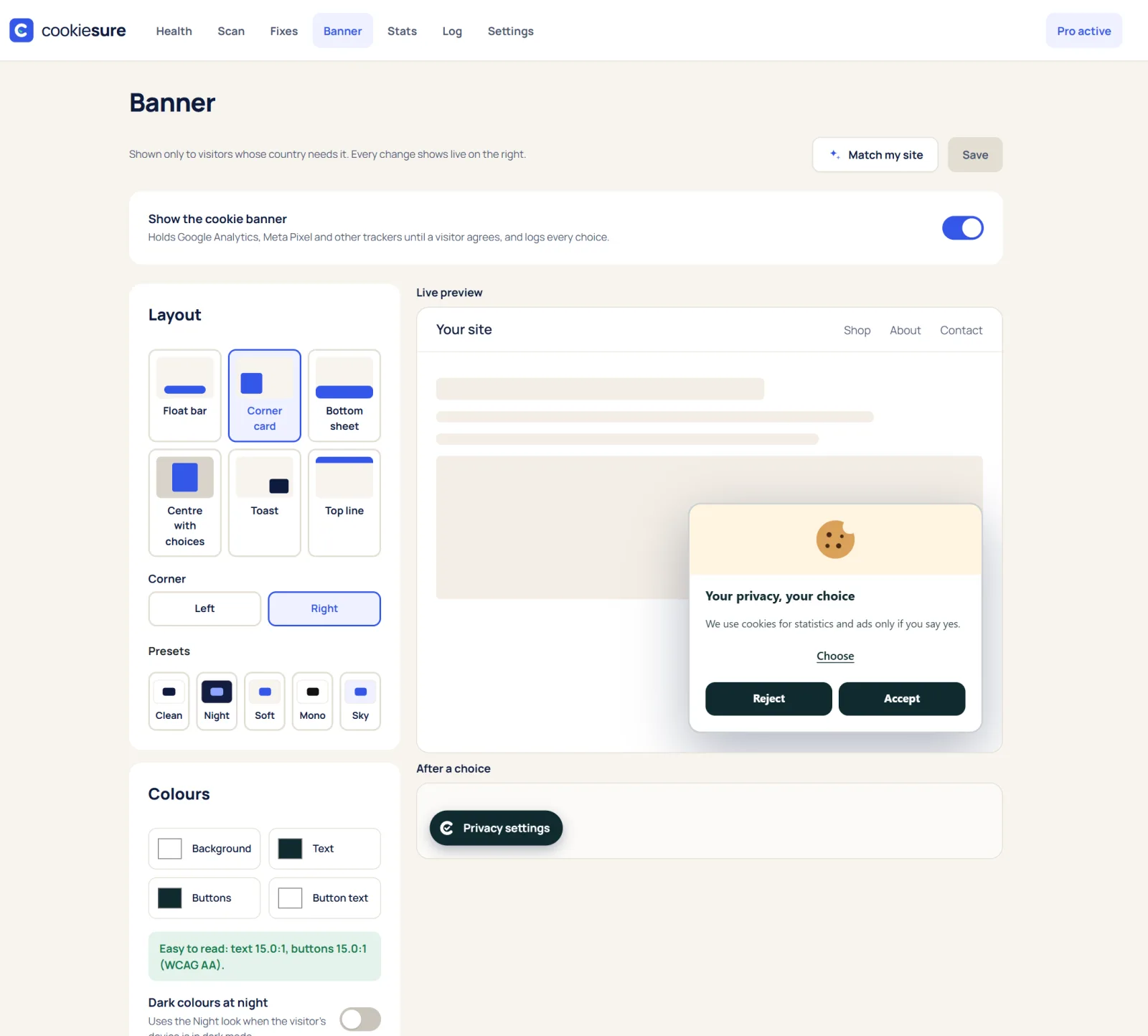
CookieSure works this way: Google Consent Mode v2 is on by default when you switch the banner on, and it also signals choices through the WP Consent API, which other plugins can read. Its Consent Mode docs show how the banner categories map to the four signals.
Whichever plugin you use, check one thing: does your analytics plugin or theme also print its own Consent Mode default? If so, switch one of them off. More on that below.
Google Tag Manager and Consent Mode v2
If your site loads Google tags through Google Tag Manager, the rules change a little.
- Use a consent template or the Tag Manager consent APIs. Google’s guide says GTM setups should set consent with a consent mode template, built on
setDefaultConsentStateandupdateConsentState. It also advises against callinggtag('consent', 'update', ...)inside GTM, because gtag commands are queued and may not be processed before the next event. - Fire the default on the Consent Initialization trigger. This trigger runs before all others, so the default is in place before your GA4 or Ads tags.
- Or set the default in the page, before the container. If your WordPress consent plugin already prints a gtag default in
wp_headabove the GTM snippet, Tag Manager will pick it up. In that case, do not add a second default inside GTM.
Do not set two defaults
The most common Consent Mode problem on WordPress is two tools each sending a default: say, the consent plugin in the page and a CMP template in GTM, or the plugin plus an analytics plugin’s own Consent Mode option. The two can disagree, the later one can override the first, and Tag Assistant shows confusing results. Pick one source of truth for the default and the update, and disable Consent Mode in every other tool.
Region-specific defaults for Consent Mode v2 in WordPress
Cookie rules differ by place. The EU, EEA, UK and Switzerland generally require opt-in before non-essential cookies. Most US state privacy laws work on an opt-out basis instead. Consent Mode lets you reflect this with a region parameter on the default command, using ISO 3166-2 codes.
// Stricter default for listed regions (shortened list)
gtag('consent', 'default', {
  'ad_storage': 'denied',
  'ad_user_data': 'denied',
  'ad_personalization': 'denied',
  'analytics_storage': 'denied',
  'region': ['AT', 'BE', 'DE', 'FR', 'IE', 'NL', 'GB', 'CH']
});

// Default for everyone else
gtag('consent', 'default', {
  'ad_storage': 'granted',
  'ad_user_data': 'granted',
  'ad_personalization': 'granted',
  'analytics_storage': 'granted'
});
Google applies the most specific matching region. A default with no region covers everyone not listed. A real setup must list every EEA country plus the UK and Switzerland, not just the eight shown here.
Two cautions. First, two default commands with different regions are fine; two defaults for the same visitor from two different tools are not. Second, a “granted” default for the rest of the world is a business choice: some countries outside Europe also expect opt-in, and US visitors may send a Global Privacy Control signal that should be honored as an opt-out. Many sites keep “denied” as the global default and only relax it for regions they have checked.
CookieSure handles this with rules per region: EU/EEA, UK and Switzerland ask first, the US allows with an opt-out and respects Global Privacy Control, and the rest of the world asks first by default.
How to verify Consent Mode v2 with Tag Assistant and GA4
Do not assume it works because a setting is switched on. Check it.
In Tag Assistant
- Open Google Tag Assistant, enter your site’s URL and connect. Your site opens in a new tab.
- Before clicking anything on the banner, select the earliest Consent event in the summary. In the API call, confirm all four types (
ad_storage,analytics_storage,ad_user_data,ad_personalization) are set to denied. - Accept all on your banner. Select the latest Consent event and confirm the four types changed to granted.
- Open your GA4 tag in the output and look at the Consent tab. The On-page Default and On-page Update columns should match what you expect.
- Repeat with Reject, and with a mixed choice (statistics yes, marketing no).
If you use region rules, test with a simulated location in Chrome’s developer tools so you see each default.
In Google Analytics 4
Go to Admin > Data collection and modification > Consent settings. GA4 shows how much of your traffic comes from the EEA and, per data stream, whether advertising and behavior analytics consent signals are arriving, with a note if it spots a problem. Google says the status can take 48 to 72 hours to update after you fix your site, so do not panic if it is still flagged the same afternoon.
A quick extra check: open the site in a private window, reject, and look at the Network tab. With basic mode you should see no requests to Google at all. With advanced mode you will see requests, but no _ga cookies should appear under Application > Cookies. The free cookie checker can confirm what loads before consent.
Common Consent Mode v2 mistakes
- Default after the tag. The Google tag fires first, so the first page view goes out without consent information. Move the default higher in
wp_heador into the Consent Initialization trigger. - Only v1 signals. Older banners send only
ad_storageandanalytics_storage. Withoutad_user_dataandad_personalization, GA4 and Ads treat the setup as incomplete for EEA traffic. - Two defaults from two tools. A consent plugin plus an analytics plugin, or a plugin plus a GTM template. Keep one.
- Update only on click. Returning visitors revert to denied because the stored choice is never re-sent.
- Granted defaults everywhere. A default of “granted” for EU visitors defeats the purpose of the banner.
- Hardcoded tags outside the plugin’s reach. A theme or a copy-pasted header snippet that loads Google tags before the default. A privacy scan lists every outside service per page so you can find these.
- Caching the banner state. If a cache plugin stores a page with a visitor’s choice baked into the HTML, the next visitor inherits it. Consent must be read in the browser.
- Treating Consent Mode as compliance. It passes signals; it does not decide what is legal. Other tools such as YouTube embeds, Facebook pixels or Hotjar need their own consent handling. If you only need visitor numbers, cookieless analytics may avoid the question for statistics entirely.
FAQ
Is Google Consent Mode v2 required by law?
No. It is a Google requirement for using certain ad and measurement features with visitors in the EEA, UK and Switzerland. The legal duty to ask for consent comes from laws such as the GDPR, the ePrivacy rules and the UK’s PECR.
Do I need Consent Mode v2 if I don’t run Google Ads?
If you use Google Analytics with EU visitors, sending the signals is still the correct way to pass on their choice, and GA4 checks for them. If you use no Google tags at all, Consent Mode does nothing for you.
Should I use basic or advanced Consent Mode?
Basic sends nothing to Google until the visitor agrees and has the smallest privacy footprint. Advanced sends cookieless pings before consent and gives Google better modeling. Choose based on how much you rely on Google Ads data and how cautious you want to be.
Can my consent plugin and Google Tag Manager both set Consent Mode?
Only one of them should set the default and send updates. Either let the WordPress plugin print the default above the GTM snippet, or use a consent template inside GTM, and switch the other off.
How long does GA4 take to show that consent signals are working?
Google says the notices in GA4’s consent settings can take 48 to 72 hours to update. Tag Assistant shows the result immediately, so use it to confirm your setup the same day.
This article explains how the technology works and is not legal advice.
One useful guide a month
New privacy guides for WordPress, straight to your inbox. No spam, unsubscribe any time.
The CookieSure team builds a privacy-first cookie plugin for WordPress and writes about privacy you can actually set up.